
 tum
f863055e03
first commit
tum
f863055e03
first commit
|
11 ay önce | |
|---|---|---|
| .. | ||
| .vscode | 11 ay önce | |
| docker | 11 ay önce | |
| public | 11 ay önce | |
| src | 11 ay önce | |
| tests | 11 ay önce | |
| .browserslistrc | 11 ay önce | |
| .editorconfig | 11 ay önce | |
| .gitignore | 11 ay önce | |
| .lintstagedrc.js | 11 ay önce | |
| .npmrc | 11 ay önce | |
| .prettierignore | 11 ay önce | |
| .prettierrc.json | 11 ay önce | |
| CHANGELOG.md | 11 ay önce | |
| README.md | 11 ay önce | |
| env.d.ts | 11 ay önce | |
| index.html | 11 ay önce | |
| package.json | 11 ay önce | |
| sonar-project.properties | 11 ay önce | |
| start.js | 11 ay önce | |
| tsconfig.json | 11 ay önce | |
| vite.config.ts | 11 ay önce | |
| vitest.config.ts | 11 ay önce | |
README.md
# Web UI
The Web UI code and configuration is in the repository directory ui/web. Commands execution is relative to that directory.
Table of contents
Project setup
Configuration
Simulator UI Server Configuration
The simulator UI server must be enabled, use WebSocket transport type and have authentication disabled. The simulator main configuration file should have a uiServer section like this:
  "uiServer": {
    "enabled": true,
    "type": "ws",
    "authentication": {
      "enabled": true,
      "type": "protocol-basic-auth",
      "username": "admin",
      "password": "admin"
    }
  },
See here for more details.
Web UI configuration
Copy the configuration template src/assets/config-template.json to public/config.json.
Unique UI server
{
  "uiServer": {
    "host": "localhost",
    "port": 8080,
    "protocol": "ui",
    "version": "0.0.1",
    "authentication": {
      "enabled": true,
      "type": "protocol-basic-auth",
      "username": "admin",
      "password": "admin"
    }
  }
}
Multiple UI servers
{
  "uiServer": [
    {
      "host": "server1.domain.tld",
      "port": 8080,
      "protocol": "ui",
      "version": "0.0.1",
      "authentication": {
        "enabled": true,
        "type": "protocol-basic-auth",
        "username": "admin",
        "password": "admin"
      }
    },
    ...
    {
      "host": "serverN.domain.tld",
      "port": 8080,
      "protocol": "ui",
      "version": "0.0.1",
      "authentication": {
        "enabled": true,
        "type": "protocol-basic-auth",
        "username": "admin",
        "password": "admin"
      }
    }
  ]
}
Run
Compiles and run for production
pnpm preview
Preview locally
You can now follow the link displayed in the terminal. The Web UI looks like the following:
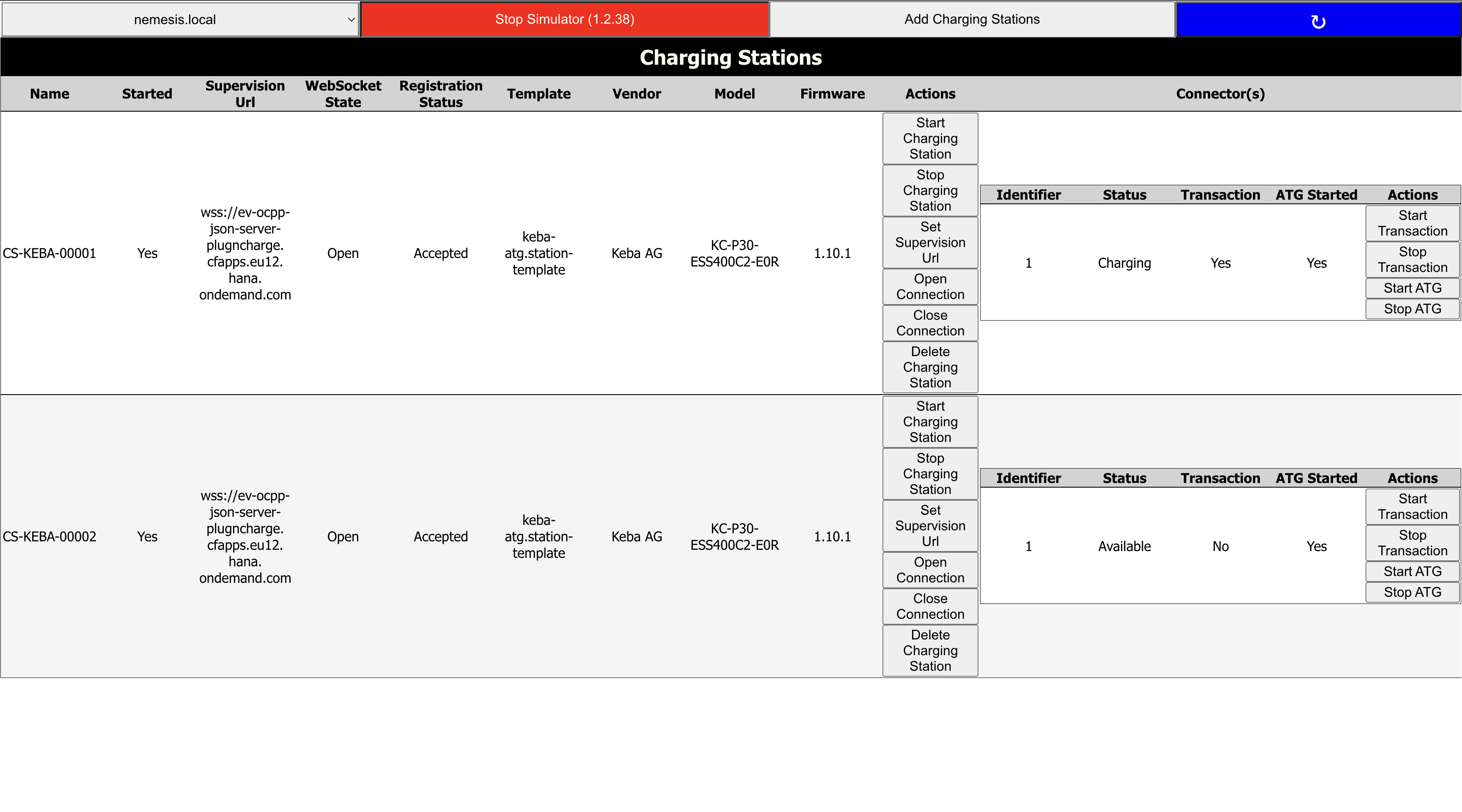
- With the buttons on the top you can change UI server, start/stop the simulator, add new charging stations and refresh the content.
- Each charging station is a row in the table with specific 'Actions' to execute on. Try 'Stop Charging Station' and refresh with the large blue button and see the status 'Started' turns from 'Yes' into 'No'.
Docker
In the docker folder:
make
Development
Compiles and run for development
pnpm dev
Formats files
pnpm format
Lints and fixes files
pnpm lint:fix